Brush Boolean Operators
“Brush Boolean” operators are a quick way of adding Boolean modifiers to the object and configuring cutter objects that those modifiers will use. It works with selection in the 3D viewport and treats the active object as the canvas (one that will receive modifiers), and other selected objects as cutters (although this behavior can be flipped), therefore, multiple cutters can be added with one operation.
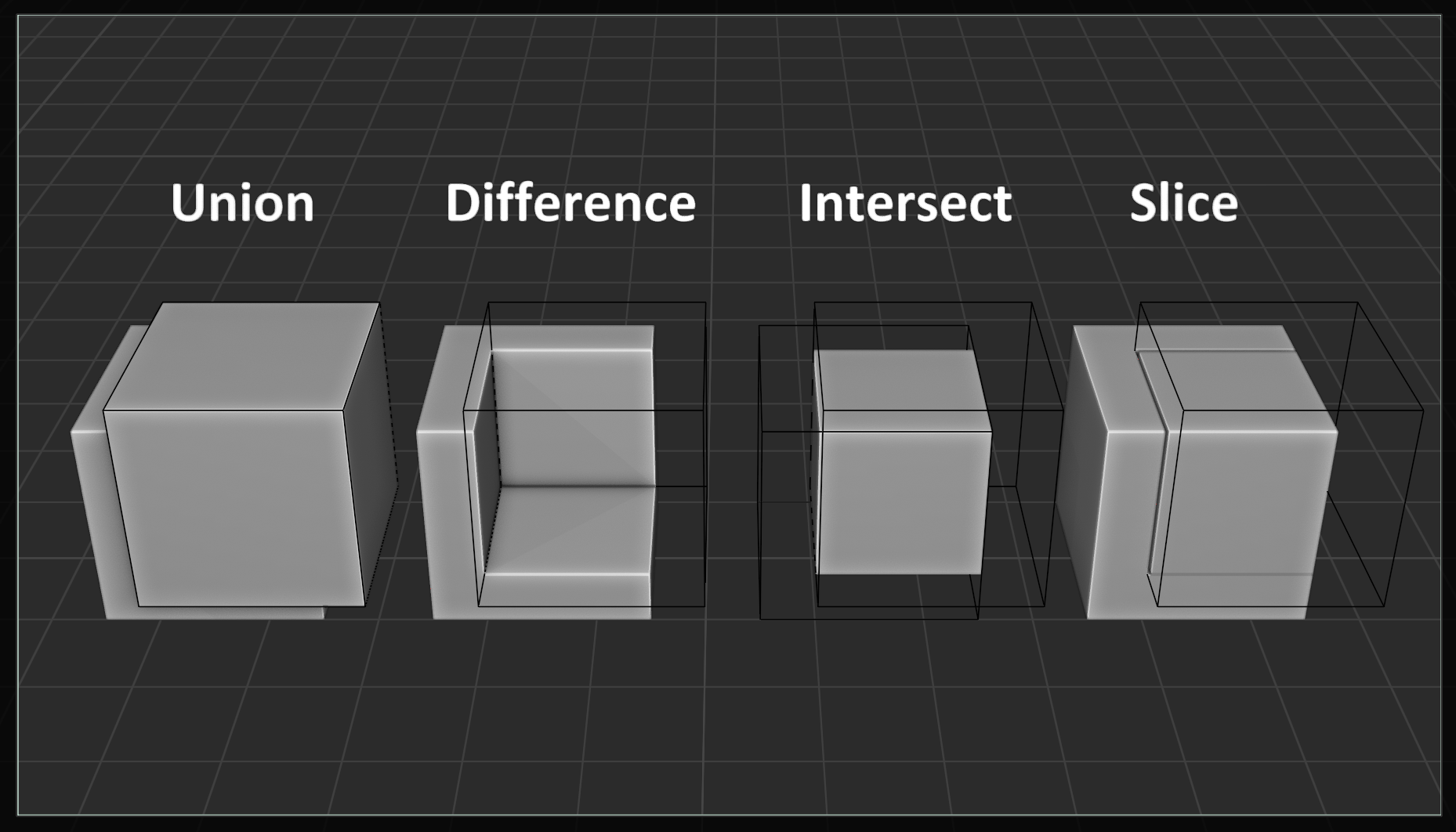
There are four different Brush Boolean operators. Three for corresponding three modes of Boolean modifier (you can read more about the general behavior of those modes in the official documentation), and a fourth one that combines two modes for a custom special effect. Each operator can be called in 3D Viewport (Object Mode only) from any of the add-on menus or with a keymap.
Ctrl+Numpad + Union, for joining the canvas with the cutter (and welding geometries by removing interior faces).
Ctrl+Numpad - Difference, for subtracting (cutting out) the part of the canvas that intersects with the cutter.
Ctrl+Numpad * Intersect, for only keeping the geometry that overlaps with the cutter object, and removing everything else.
Ctrl+Numpad / Slice, for cutting out the intersection with difference, but keeping the intersecting part as a separate object.
Note
Add-on keymaps are configurable. The documentation lists default keymaps
Anatomy of the Operator
Boolean operators are essentially just combining multiple steps (that the user would otherwise have to do manually) into one click. Besides adding a modifier and picking its object, the operator also makes changes to the cutter object so that it’s excluded from renders, parented to the canvas, etc. Most importantly, it sets the viewport display of cutters to a bounding box (or wireframe, depending on user preference), so that the solid body of the object isn’t visible, which makes it possible to preview cuts on the canvas while repositioning a cutter.
This is a full list of steps that the operator performs when it’s called:
(1) Filtering Phase
Operator filters selected and active objects to exclude ones that are not viable cutters and canvases (i.e., they do not meet the requirements for being a cutter or being a canvas).
If there are not enough viable objects to perform a Boolean operation, it cancels.
During this phase, the operator might detect objects that are not Mesh types, but output Mesh and can be used as cutters if they’re destructively converted. The operator will show the user a pop-up to confirm this action or cancel the operation. More about that here.
(2) Execution Phase
In the “Slice” operation, duplicates of canvas object(s) are created. Boolean modifiers set to “Intersect” mode are added to them. When canvas objects also receive their modifiers (set to “Difference” mode), slice objects will only show parts thet are cut off from canvas objects.
Boolean modifiers are added to canvas object(s) for each viable cutter in the selection. The solver of the modifier (as well as its visibility in edit mode) is set based on add-on preferences. Also, following the preferences, new modifiers can be put at the start of the modifier stack, instead of at the bottom.
Objects that are being used by Boolean modifiers are configured into cutters.
If cutter object(s) don’t already have parents, the operator parents them to the canvas. This behavior can be turned of in add-on preferences.
Canvas and cutter objects are marked with custom properties registered by the add-on, so that utility operators (like select, apply, remove) can recognize them more easily.
(3) Adjustment Phase
After the operator is executed and successfully finished, the user can change some properties in the “redo panel” to execute the operation again with those settings. Depending on the complexity of the geometries of objects, redoing the operator might be very slow, so user discretion is advised. Whenever possible, it is recommended to run the operator with the correct settings from the appropriate UI in the first place to avoid having to redo.
Flip
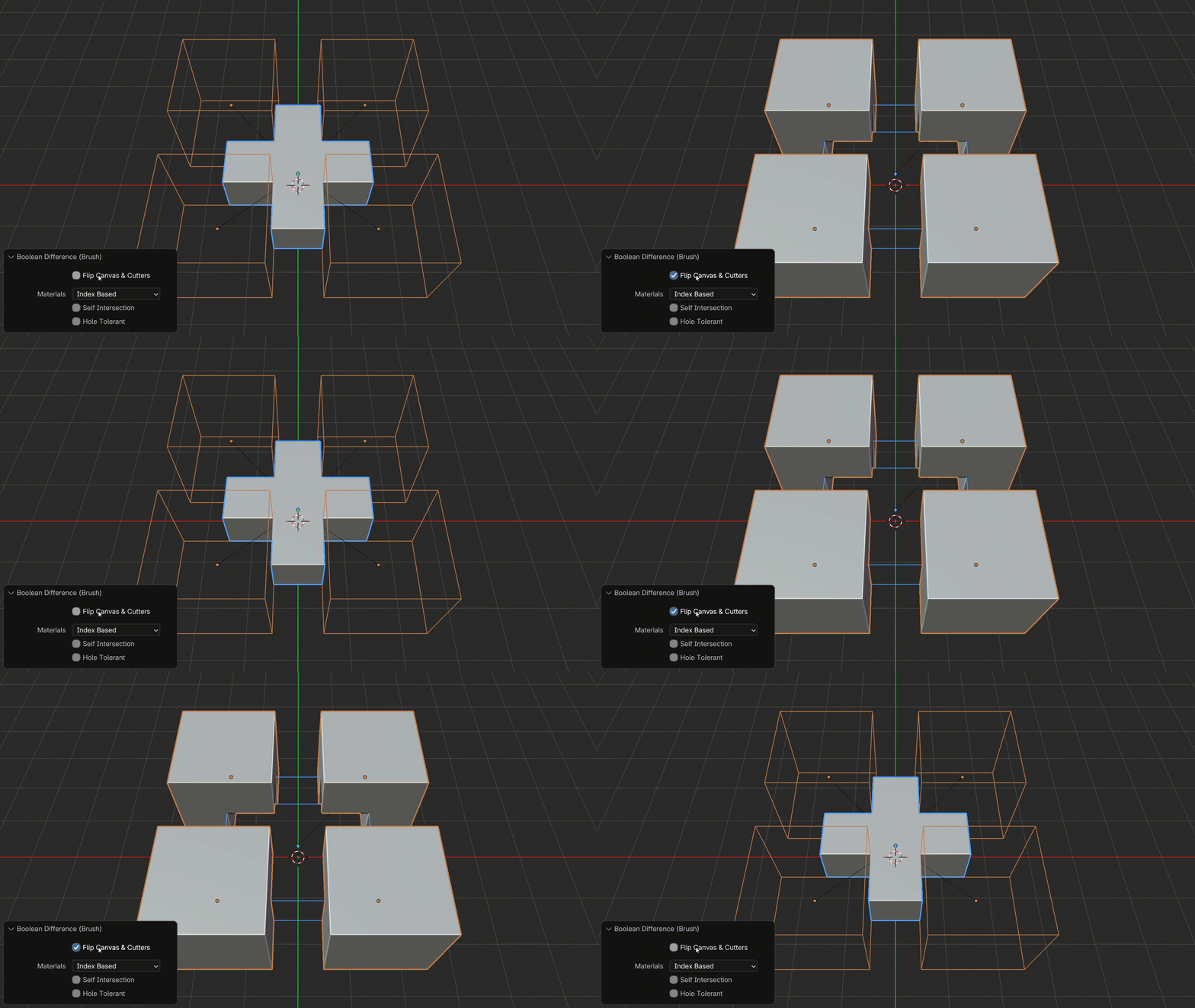
By default, operators consider the active object as the sole canvas and all selected objects as cutters. This makes it possible to perform multiple cuts on the same object at the same time. However, in some cases, it is also helpful to cut multiple different objects with the same cutter. This is what the “Flip” option does. It forces the operator to consider all selected objects as multiple canvases and the active object as the sole cutter, essentially reversing everything.
Solver Options
Each Boolean solver that can be used in modifiers has its own properties, and they’re exposed in the redo panel for convenience. Changing them from this panel will change them for all Boolean modifiers created by the operator, so it’s most useful when cutting many things at once.